The client list
Click Clients in the menu. Each row shows the name, email, phone, lifetime value and when the contact was last updated.
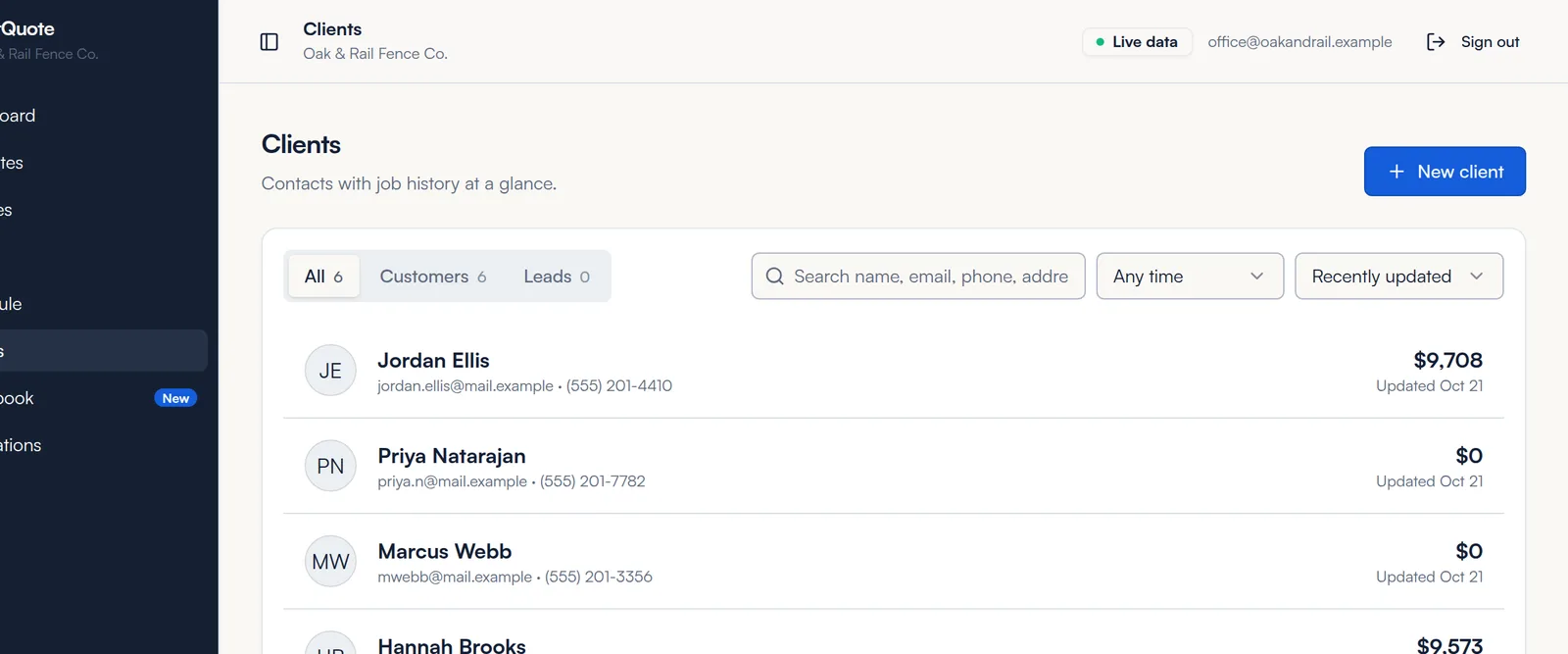
- Filters: All, Customers (anyone with an estimate, invoice or job) or Leads (no work yet).
- Search: type a name, email, phone number or address.
- Date range and sort: show Any time, the last 30 or 90 days, or this year, sorted by most or least recently updated.
Add a client
- Click New client.
- Enter the Name and an Email or Phone. You need at least one of the two so FastQuote can send proposals and invoices.
- Add the street address, city, state and postal code. FastQuote uses the address as the job address on new estimates.
- Click Create client.
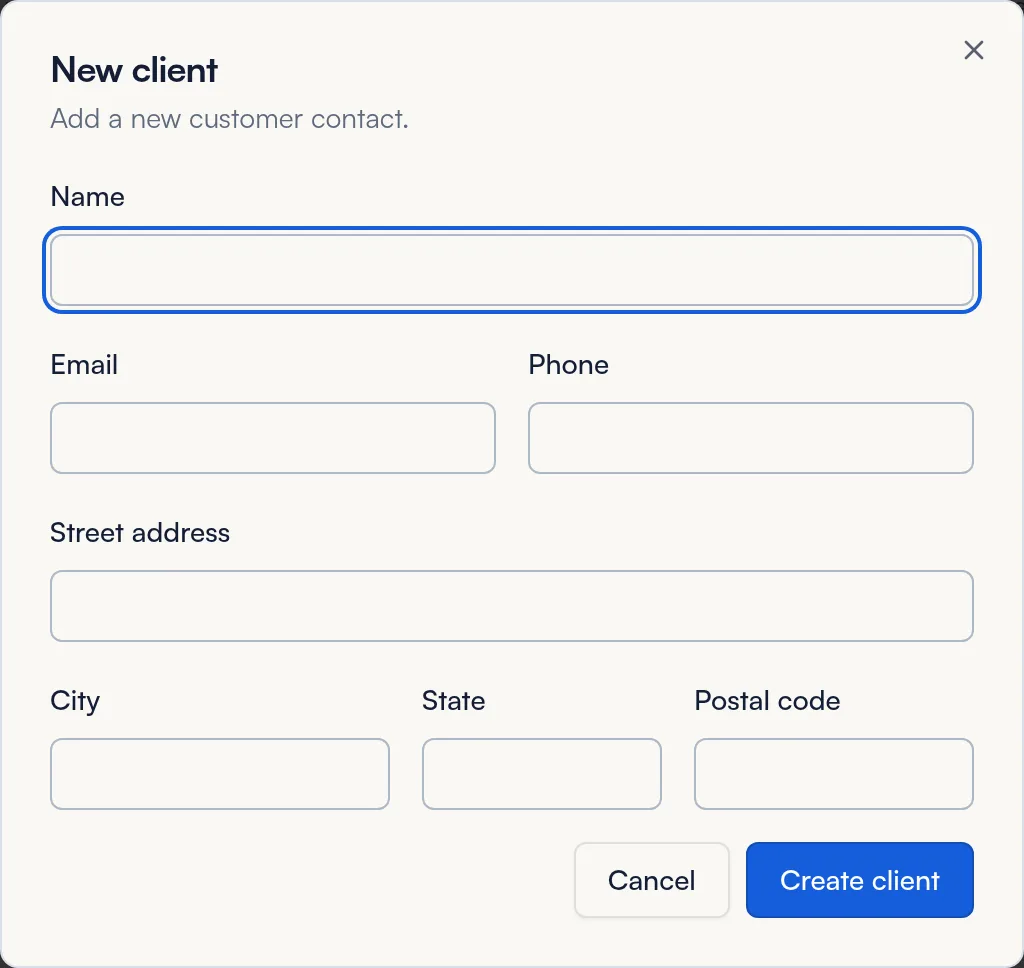
You can also add a client without leaving the estimate builder. Click New client next to the client picker.
A client's page
Click a client to see their contact details, lifetime value and how many jobs, estimates and invoices they have, with the most recent of each. Click any record to open it.
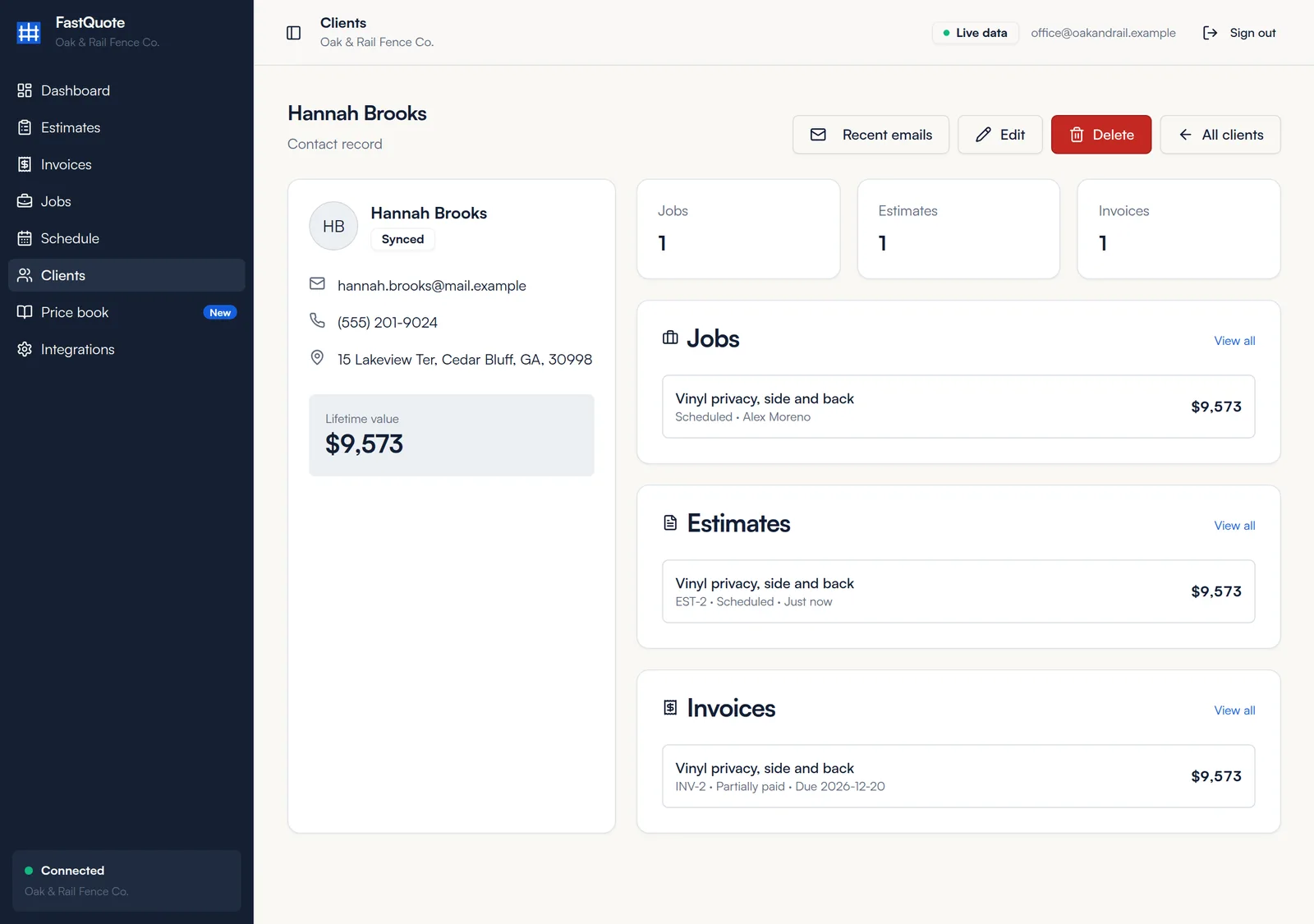
Click Recent emails to see the 10 most recent emails sent to this customer.
Edit a client
- Open the client and click Edit.
- Change what you need and save. The change syncs to your CRM.
Delete a client
- Open the client and click Delete.
- If the client has open jobs, invoices or estimates, FastQuote lists them first so you can deal with them.
- Force delete removes the client anyway. Their records stay but are no longer linked to a client, so use it with care.
Common questions
Where do my clients come from?
From your CRM. New leads and contacts show up in FastQuote, and clients you add in FastQuote show up in your CRM.
I see the same person twice. What do I do?
Open both, move any work to the one you want to keep, then delete the extra one. If both have records, contact us and we will help merge them.
What is lifetime value?
The total of the client's invoices in FastQuote.
Still stuck? We are happy to walk you through it.