How the price book works
Open Price book from the menu. It has four tabs: Fence styles, Upgrades, Saved items and Materials.
- Your costs stay private. Customers only see prices.
- Changes apply to new estimates right away. Estimates you already sent keep their prices.
- The fence calculator appears in the estimate builder once at least one style is on. Manual line items and saved items work without any setup.
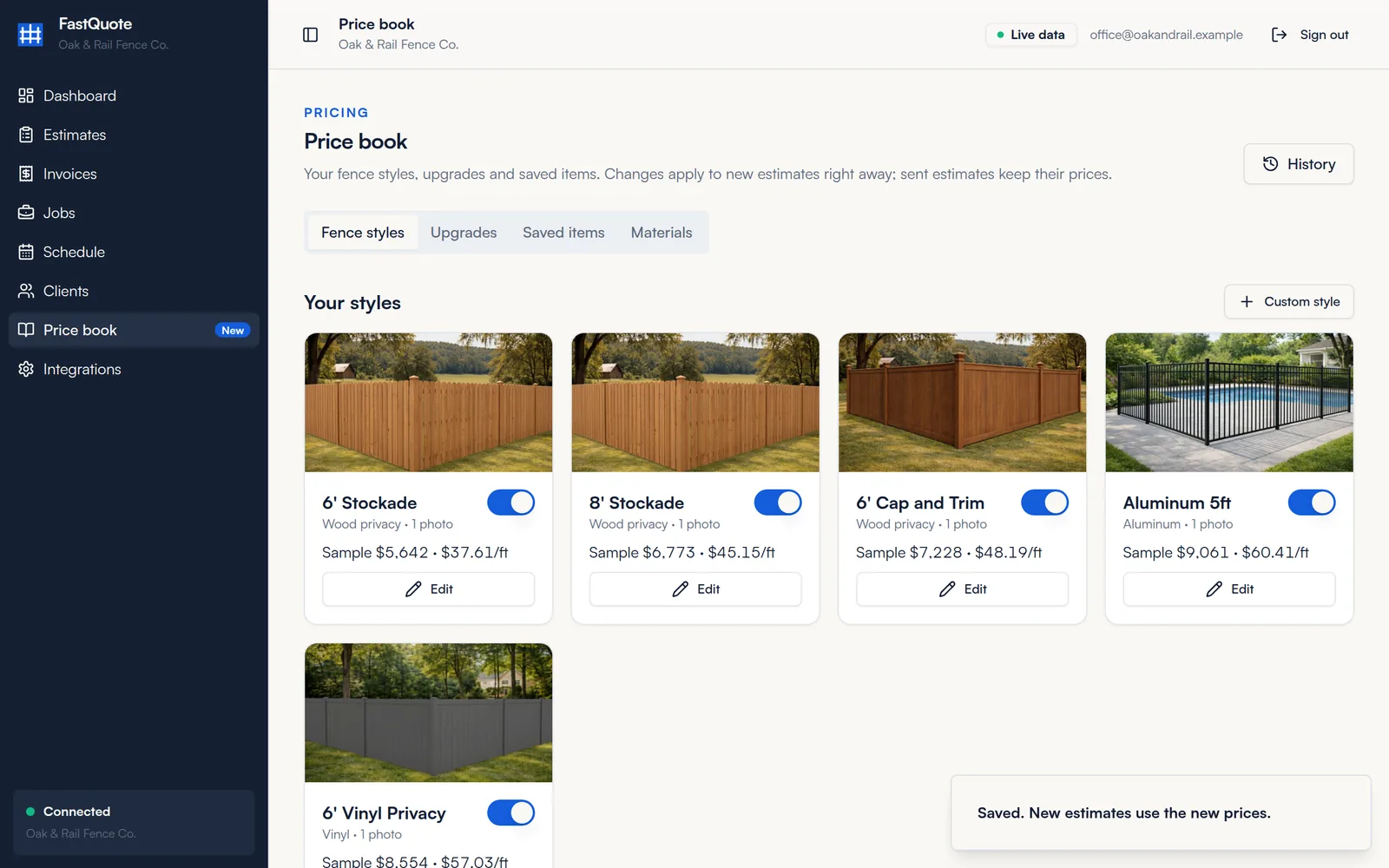
This guide covers the first three tabs. Pricing a style from the materials you buy has its own Materials guide.
Turn on a fence style
FastQuote comes with a starter library of common styles under Ready to set up. Each one needs three costs before you can quote it.
- On the Fence styles tab, find the style under Ready to set up and click Set up.
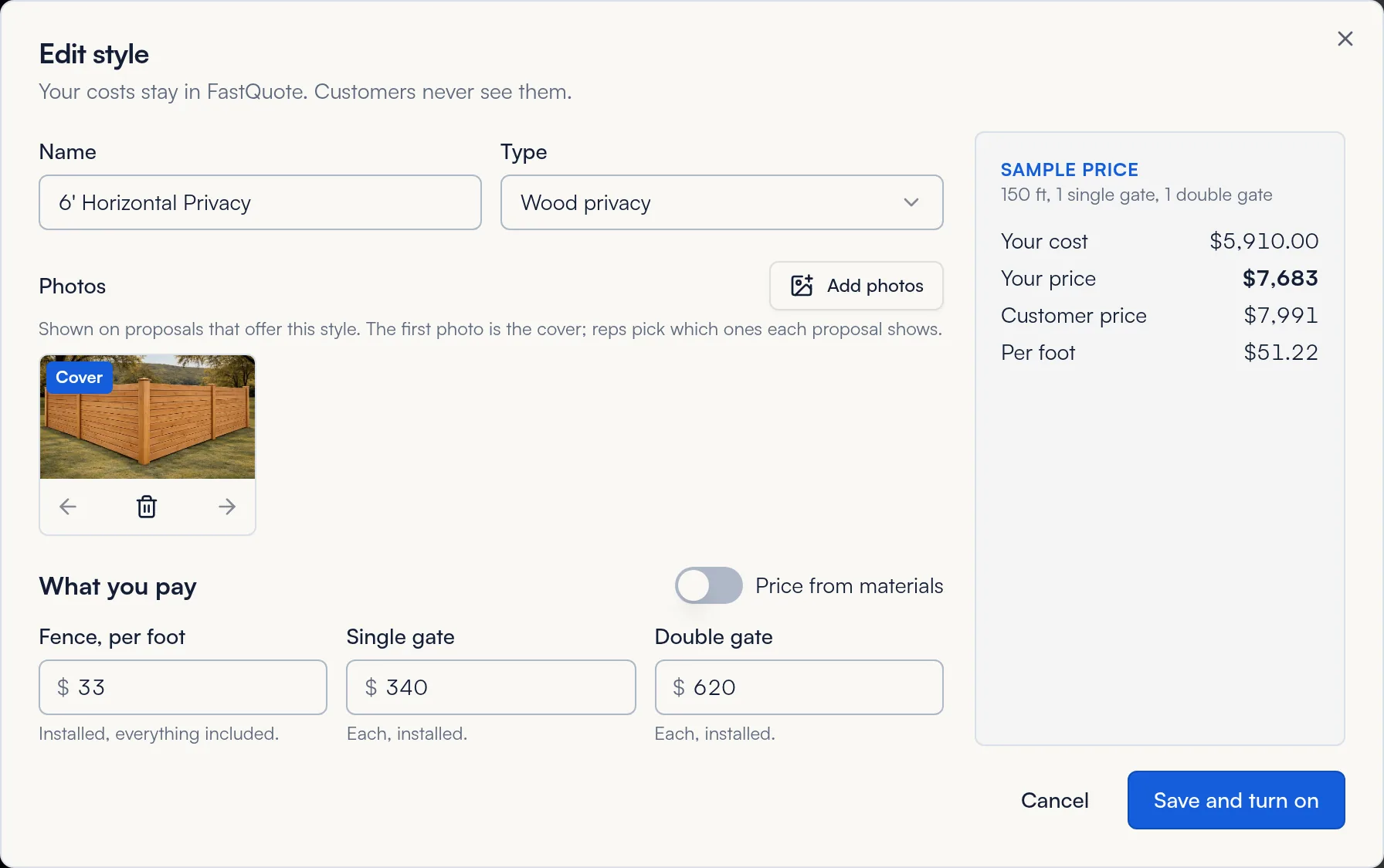
- Under What you pay, enter your installed costs: Fence, per foot, Single gate and Double gate. Include materials and labor.
- Check the Sample price on the right. It prices a 150 ft job with one single gate and one double gate.
- Click Save and turn on. The style moves up to Your styles with its switch on.
Reading the sample price
- Your cost
- What the sample job costs you.
- Your price
- Your cost plus your default markup and commission.
- Customer price
- What the customer sees on the proposal. It includes the 4% card fee. Customers who pay by check or cash get that amount off.
- Per foot
- Your price divided by the 150 ft.
Markup and commission. Your defaults are set with Fence Branders during setup. Reps can adjust markup and commission on each estimate within your allowed range. Contact us to change the defaults.
Change a price or photo
- Under Your styles, click Edit on the style.
- Change the name, type, costs or photos.
- Click Save changes. FastQuote confirms with "Saved. New estimates use the new prices."
Photos
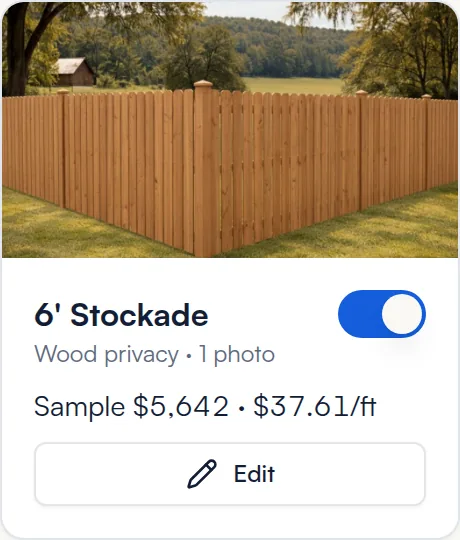
- Click Add photos to upload JPEG, PNG or WebP images. Each style holds up to 12.
- The first photo is the cover. Use the arrows under a photo to move it and the trash can to remove it.
- Photos show on proposals that offer the style. Reps choose which ones each proposal shows.
- Real photos of your own work sell best. Swap in yours when you can.
Turn a style off
Flip the switch on the style's card. The style and its costs stay saved, but reps cannot pick it on new estimates. Flip it back on any time.
Add your own style
- Click Custom style next to Your styles.
- Enter a Name, pick a Type and enter your three costs.
- Click Save and turn on.
- To add photos, click Edit on the new style. Photos can be added after the first save.
You can also rename any starter style to match what you call it.
Upgrades
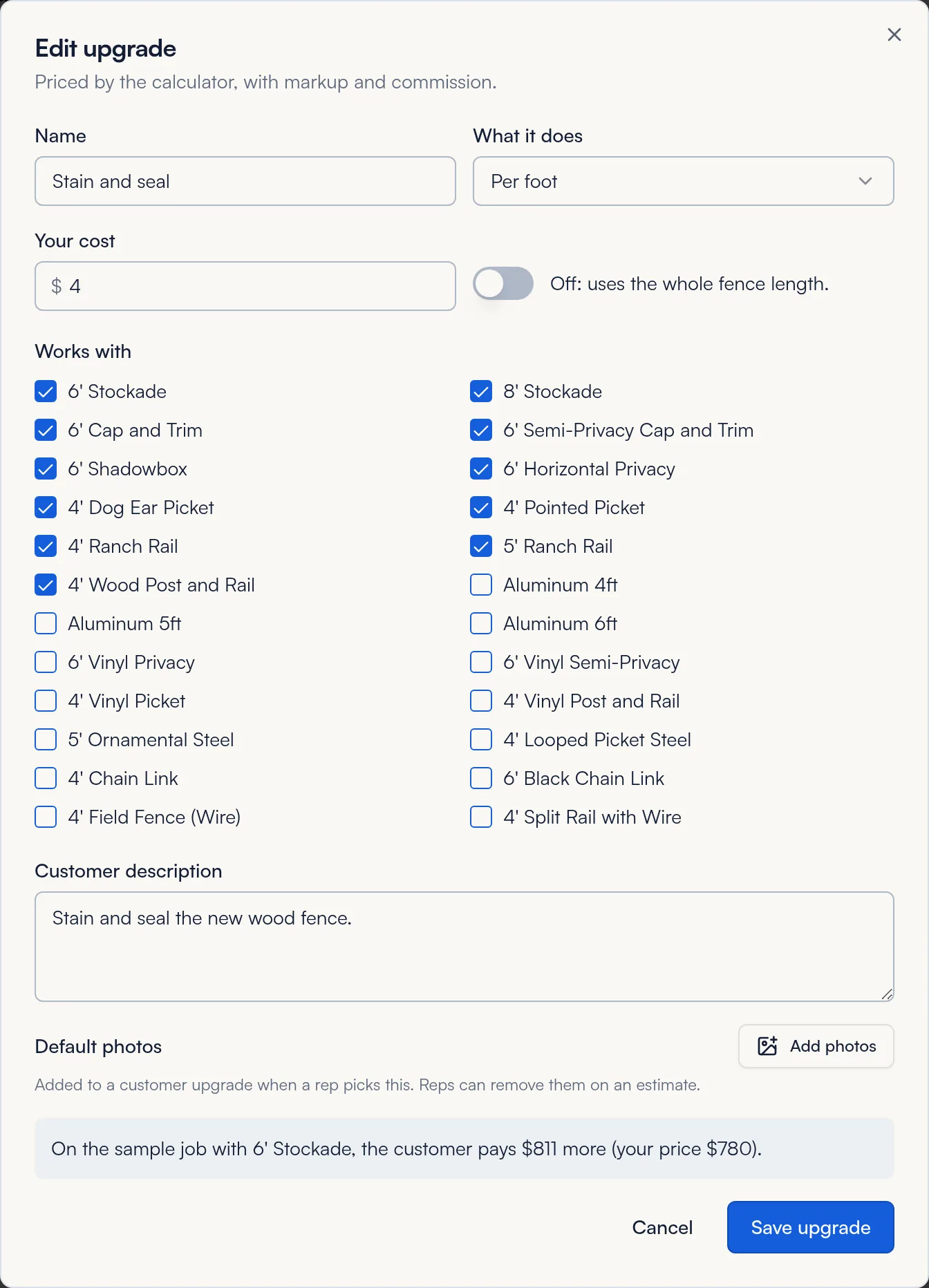
Upgrades are options your customer can add on the proposal, like stain and seal, cedar pickets or a self-closing hinge. The calculator prices each one on top of the style, with your markup.
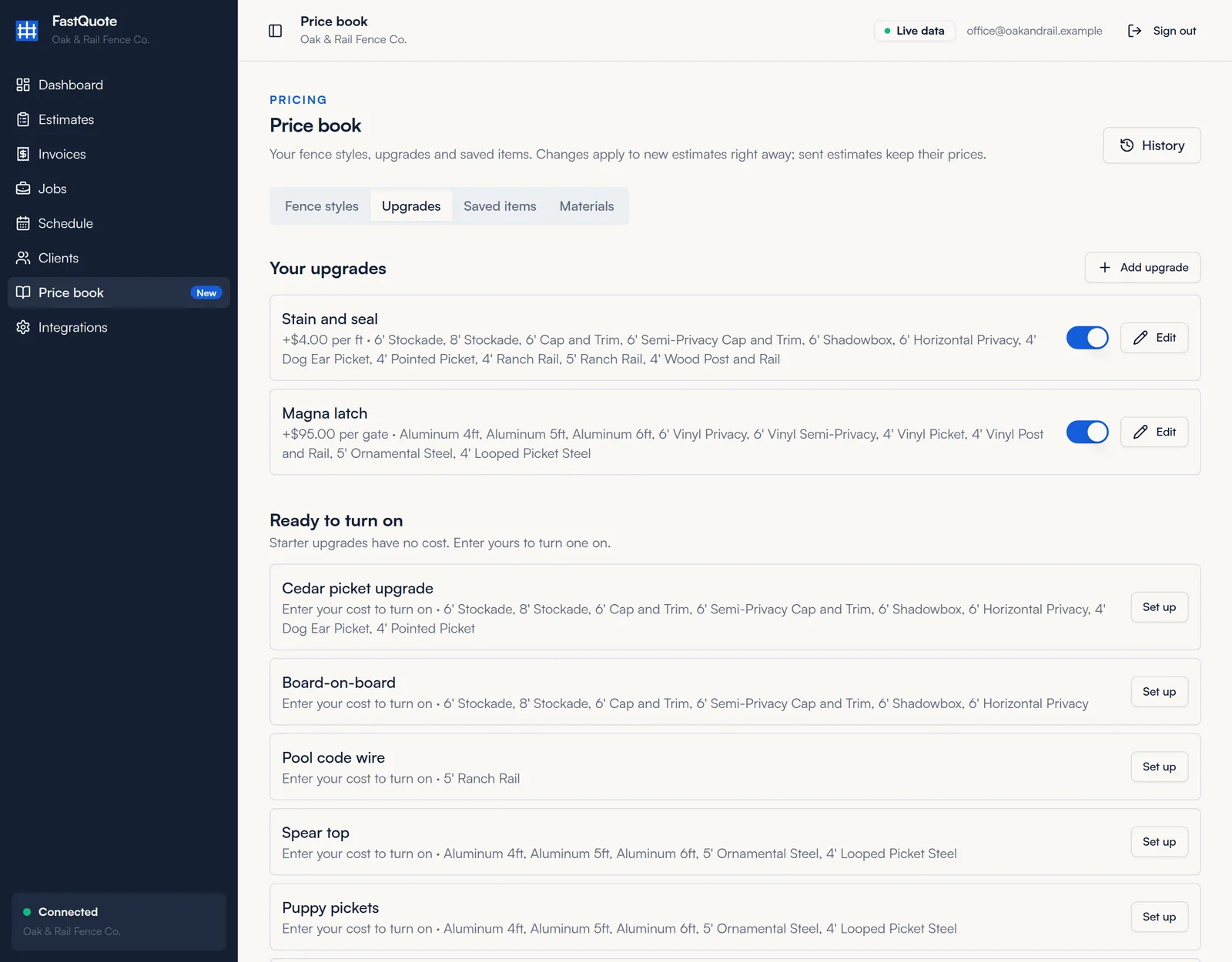
- Open the Upgrades tab and click Set up next to an upgrade under Ready to turn on. To make your own, click Add upgrade.
- Choose What it does: Per foot, Per gate, Per item or Flat amount.
- Enter Your cost.
- Under Works with, check the styles it can be offered with.
- Edit the Customer description. This is what your customer reads on the proposal.
- Check the sample line at the bottom, then click Save and turn on.
Who sets the quantity
Per foot and per item upgrades have a switch next to Your cost:
- Off: a per foot upgrade covers the whole fence length, and a per item upgrade counts once per estimate.
- On: the rep enters the quantity on each estimate. Use this for things like staining one side or a set number of core drills.
Use the switch on each upgrade in the list to turn it on or off.
Saved items
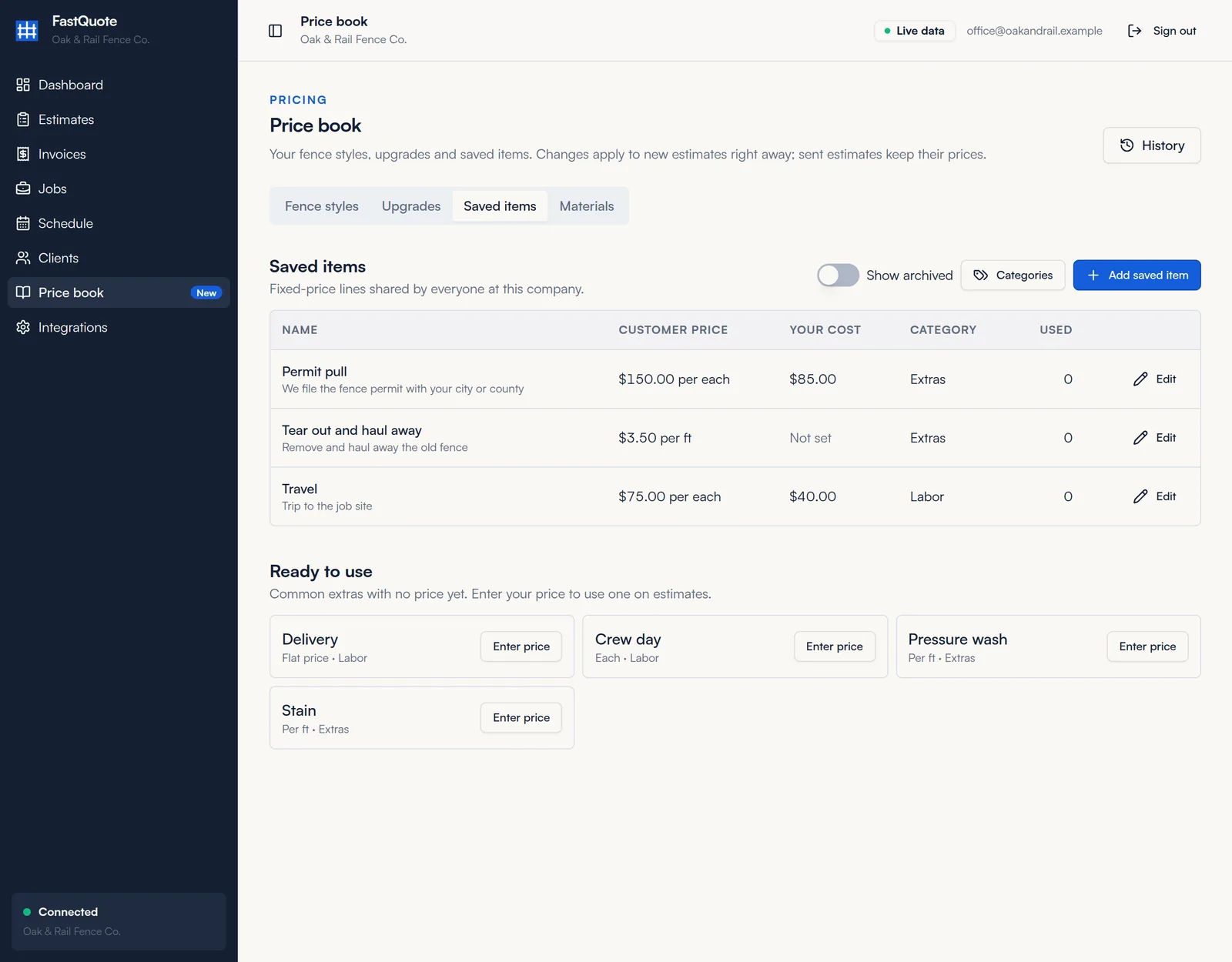
Saved items are set-price lines anyone at your company can add to an estimate, like travel, delivery or tear out. Markup does not apply. You set the customer price.
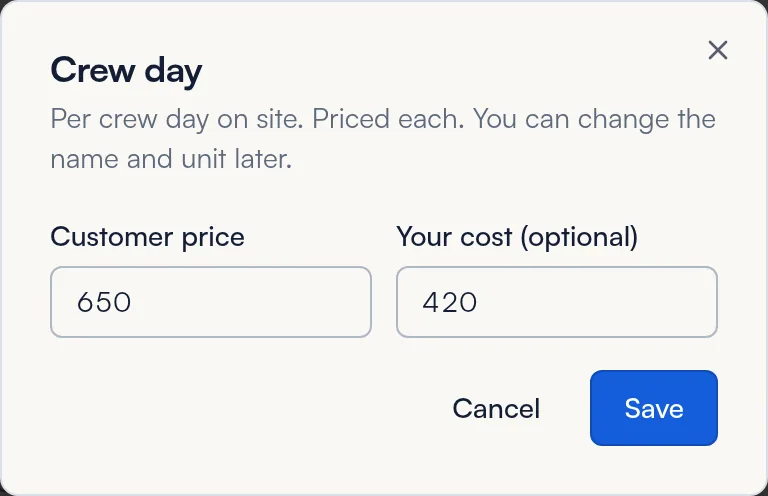
Price a starter item
- On the Saved items tab, find the item under Ready to use and click Enter price.
- Enter the Customer price. Add Your cost if you want it counted in job profit.
- Click Save.
Add your own item
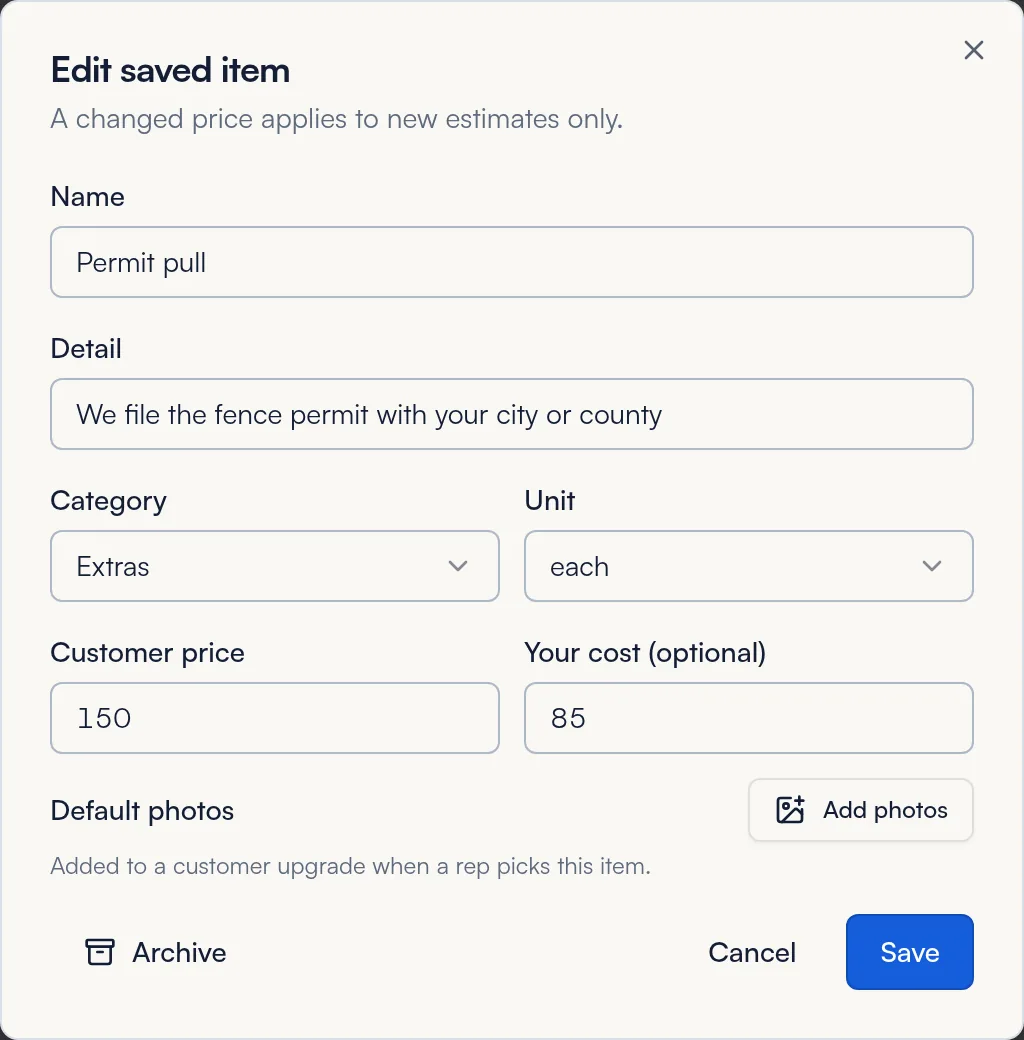
- Click Add saved item.
- Enter a Name and a short Detail.
- Pick a Category and Unit, then enter the Customer price and, if you like, Your cost.
- Click Save.
You can also save a line straight from an estimate. In the estimate builder, click Save to price book under any line.
Organize and archive
- Categories: click Categories to add or remove the groups your items are sorted into.
- Archive: click Edit on an item, then Archive to keep it off new estimates. Turn on Show archived to find it again and click Restore.
- Used: this column shows how many times each item has been added.
History
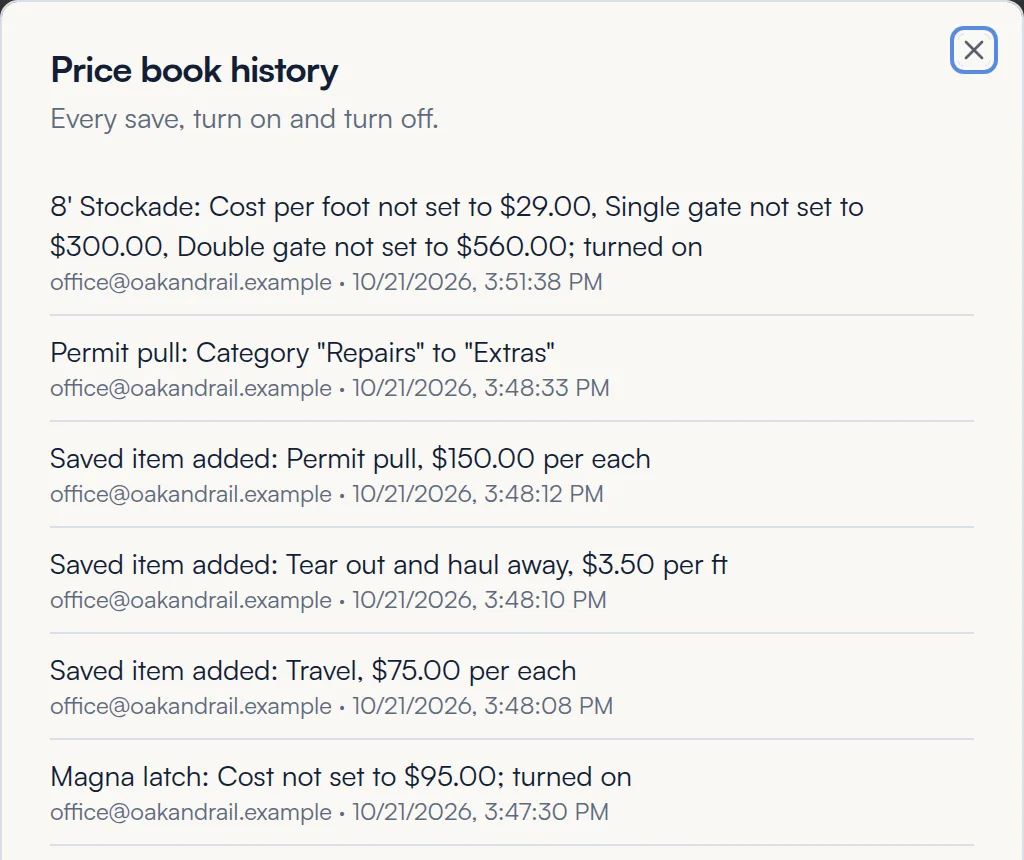
Click History at the top of the price book to see every save, turn on and turn off, with who made the change and when.
Common questions
If I change a price, do estimates I already sent change?
No. Sent estimates keep their prices. New estimates use the new price right away.
Can customers see my costs?
No. Your costs, markup and commission stay inside FastQuote. Customers only see prices.
What is the difference between an upgrade and a saved item?
An upgrade is tied to fence styles and priced by the calculator with your markup, and your customer can choose to add it on the proposal. A saved item is a set-price line, like travel, that you add to any estimate.
Why don't I see the fence calculator in the estimate builder?
Turn on at least one fence style. The calculator appears as soon as one style is on.
Some starter styles have no photo. Is that a problem?
No. They work the same. Click Edit, then Add photos to add your own.
How do I change my default markup?
Contact us and we will update it. Reps can still adjust markup on each estimate within your allowed range.
Can I price a style from the materials I buy?
Yes. Edit the style and turn on Price from materials under What you pay. The Materials guide walks through it.
Still stuck? We are happy to walk you through it.