The estimates list
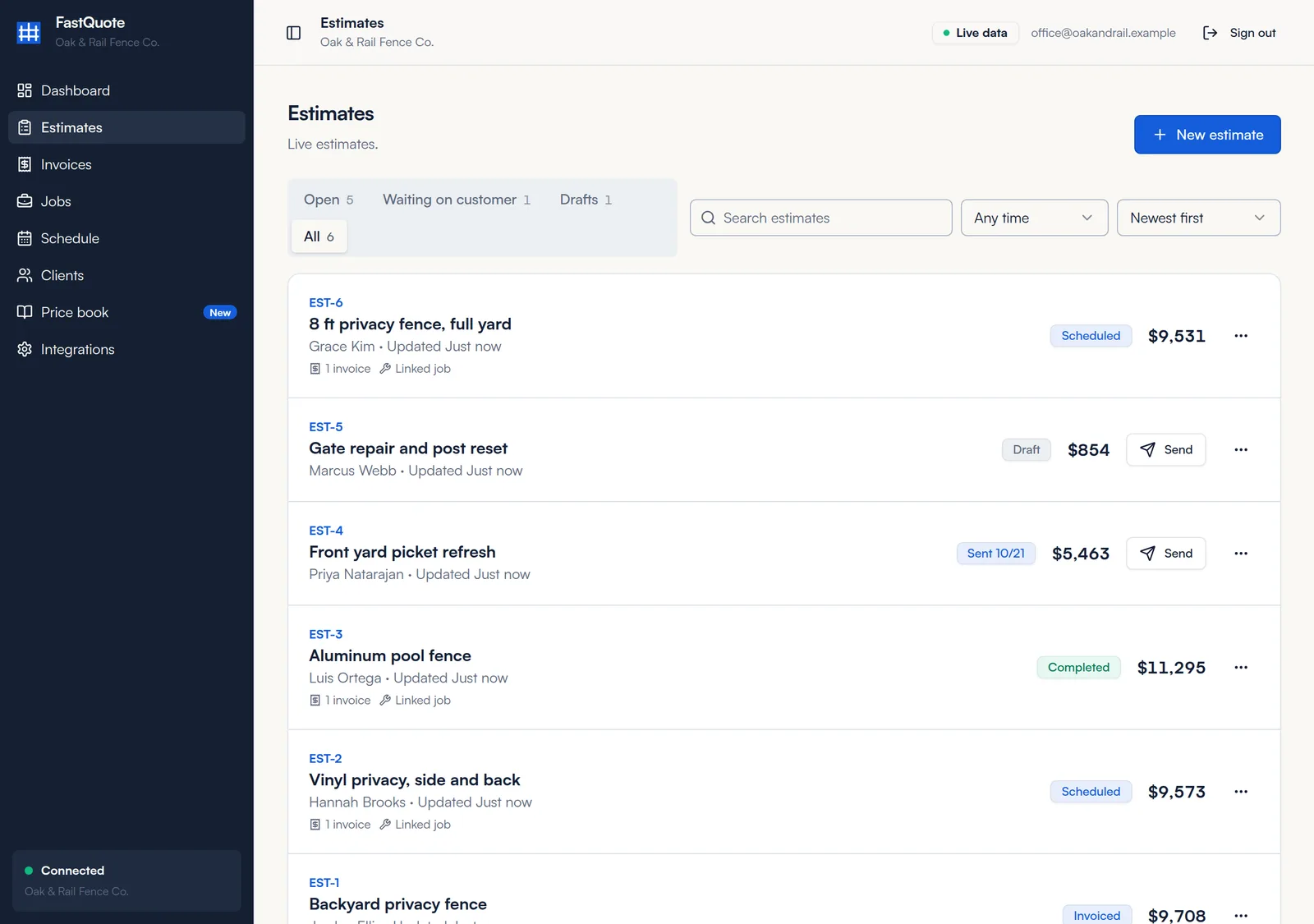
Click Estimates in the menu. Filter by Open, Waiting on customer, Drafts or All, search, and pick a date range. Each row shows the status, total and any linked invoice or job.
Start an estimate
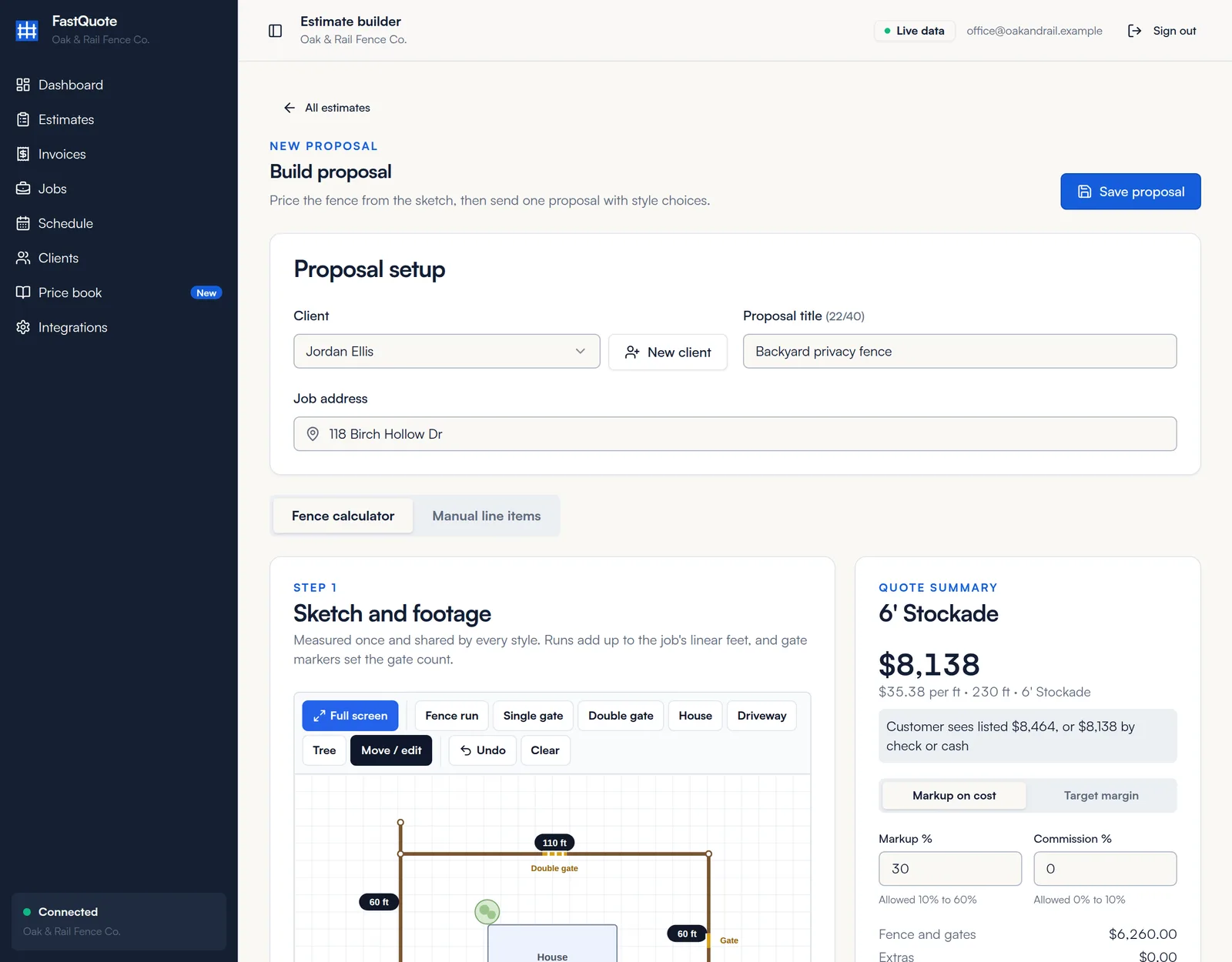
- Click New estimate, or New then Estimate on the Dashboard.
- Pick the Client, or click New client to add one.
- Enter a Proposal title, up to 40 characters, like Backyard privacy fence. The Job address fills in from the client.
- Choose Fence calculator to price from your price book, or Manual line items to type your own lines.
Sketch runs and gates
Draw the job once. Every style on the estimate uses the same footage and gate count.
- Pick Fence run and drag from start to end. Or tap where the fence starts, then tap each corner, and tap the blue dot or Finish line to stop.
- Tap a run to type its exact Run footage, or Remove it.
- Pick Single gate or Double gate and tap on a run to place it.
- Add a House, Driveway or Tree so the drawing makes sense to your customer.
- Use Move / edit to adjust, Undo to step back, or Clear to start over.
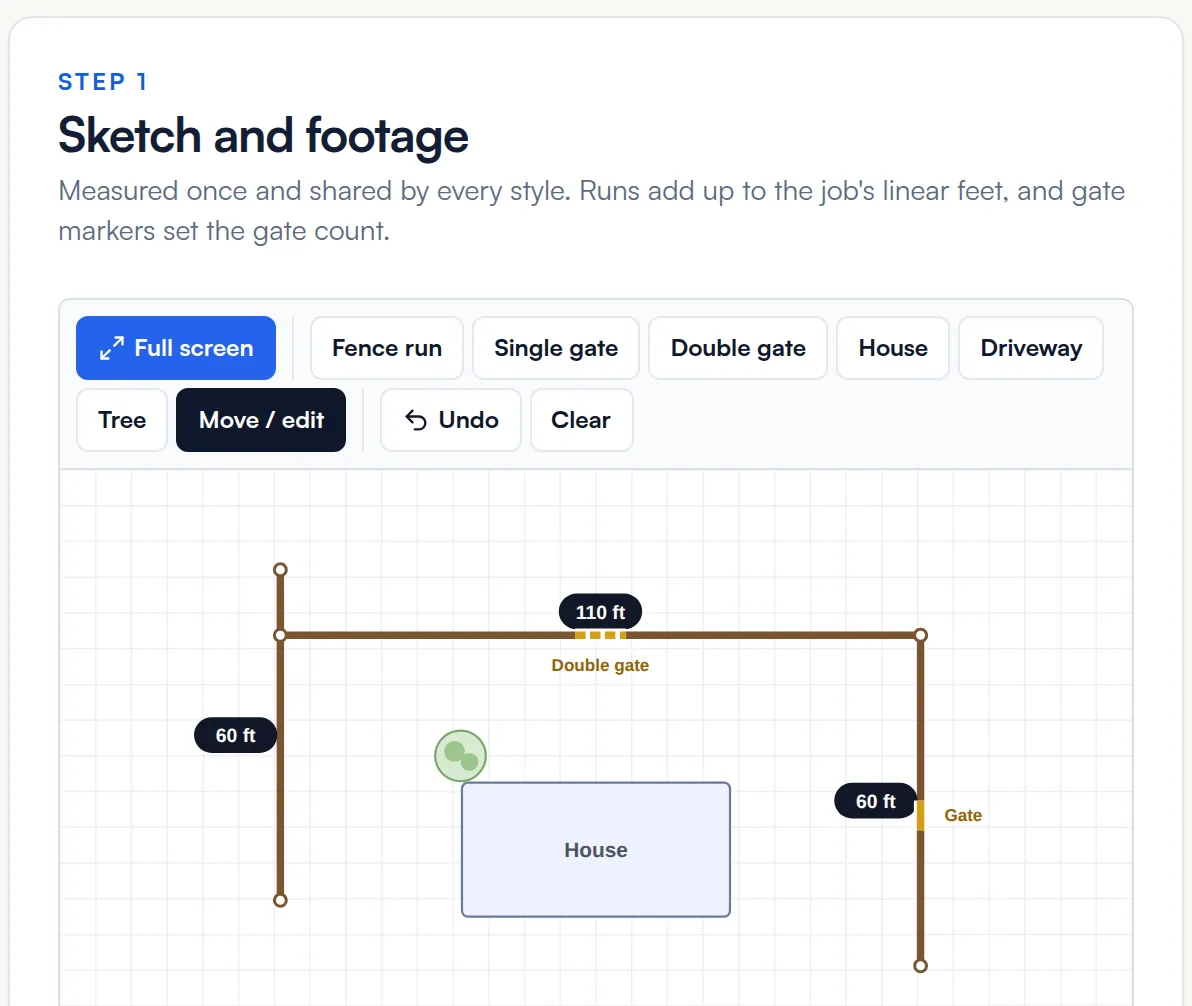
Under the sketch, FastQuote shows the total, like Sketch 230 ft = quote 230 ft, with the number of runs and gates. You can type a different linear footage if you need to.
On a phone: tap Full screen and turn your phone sideways for more room. Pinch to zoom. Reset zoom puts it back.
Good, better, best
The first style card is your Base estimate, marked Recommended for the customer. Click Add style to offer up to 3 more, so the customer can compare and pick one.
- On each card, pick a style. Only styles turned on in your price book appear.
- Choose which Photos on the proposal to show.
- Under Included scope, add lines From price book or a Custom line. Custom lines are not marked up.
- Check the price at the bottom of the card. FastQuote shows your price, the listed price, price per foot and gross profit.
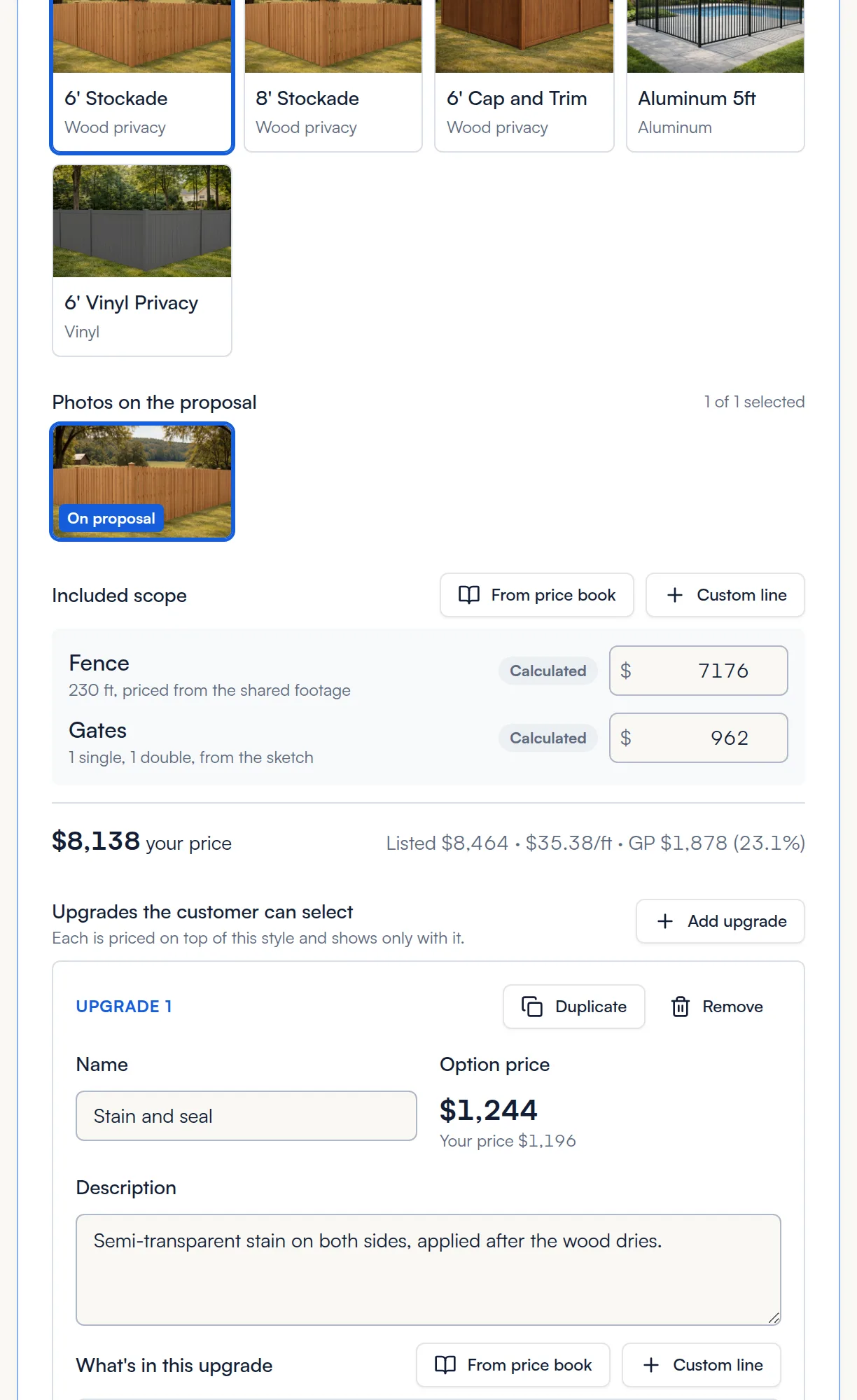
Use Duplicate, Make base, Move up, Move down and Remove to arrange the cards. The fence and gate costs say Calculated. Type over them to override for this estimate.
Upgrades
Upgrades are extras the customer can choose to add, like stain or a better latch. Each style card can have its own.
- On a style card, click Add upgrade.
- Enter a Name and a short Description the customer will read.
- Under What's in this upgrade, add lines From price book or a Custom line. Price book upgrades are priced by the calculator for that style.
- Attach photos or PDFs if they help sell it.
Upgrades with nothing in them are left off the proposal.
Quote summary
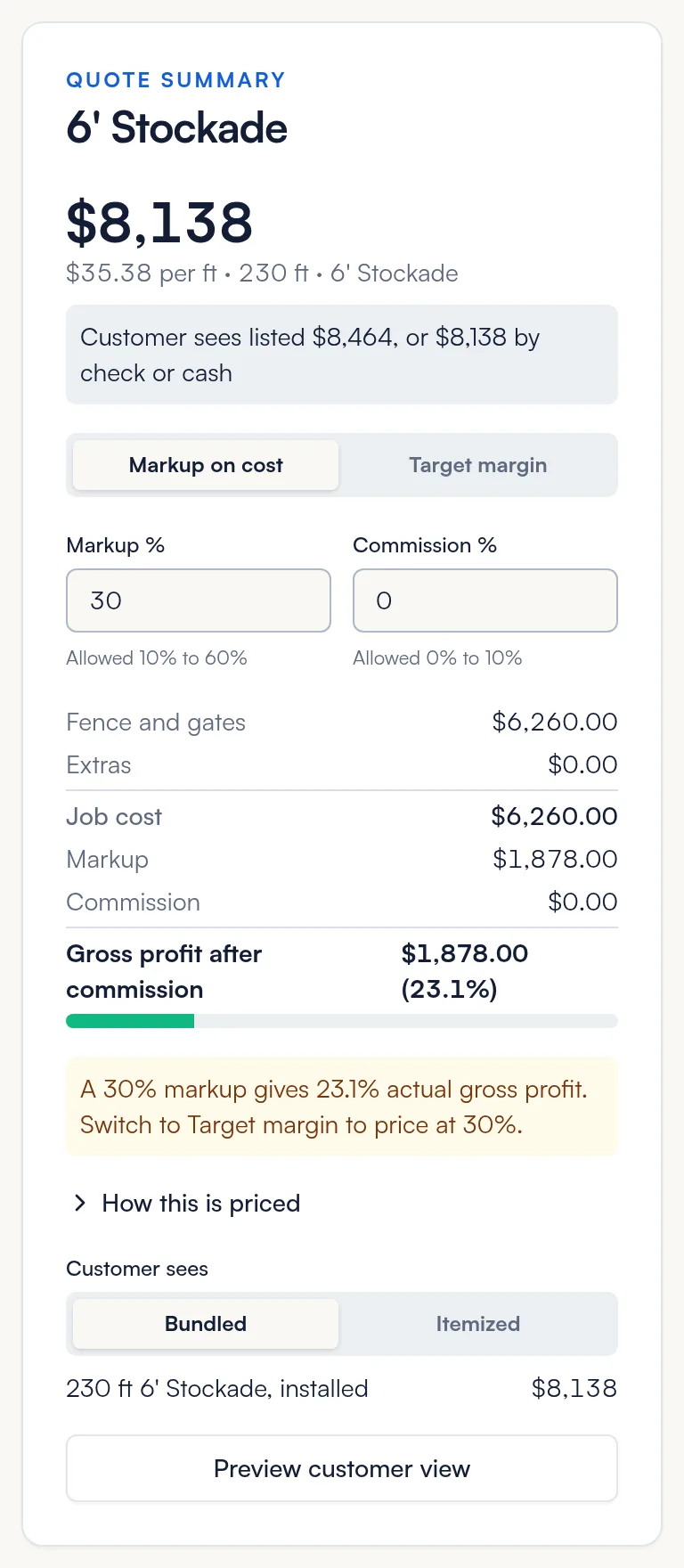
- Markup on cost or Target margin: pick how you price. The allowed range is 10% to 60%.
- Commission %: 0% to 10%, counted in your gross profit.
- Customer sees: Bundled shows one price per style. Itemized shows each line.
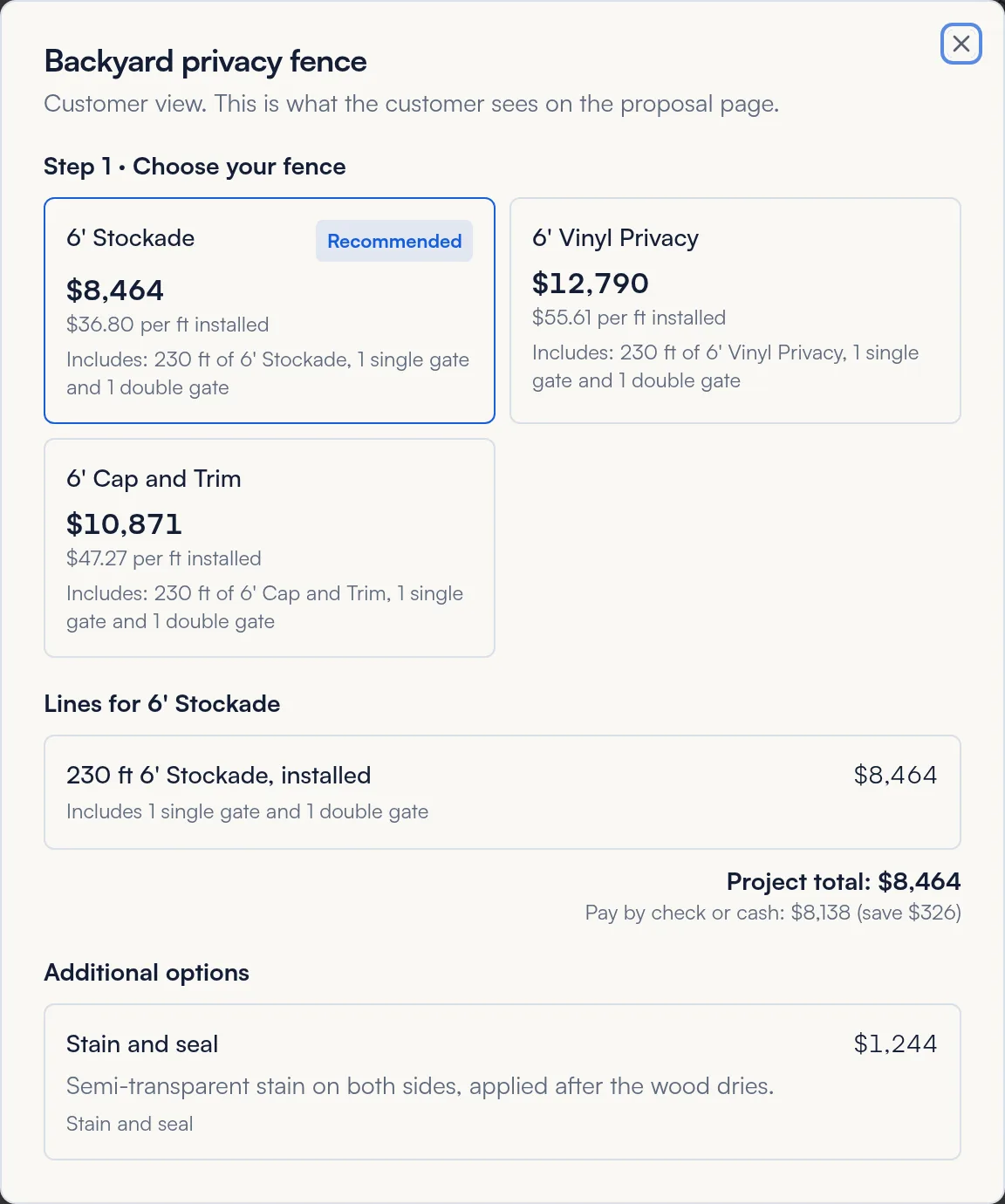
- Preview customer view: see exactly what the customer will see.
Two prices: the customer's listed price includes the online payment allowance. Customers who pay by check or cash pay your price. See Deposits and payments.
Manual line items
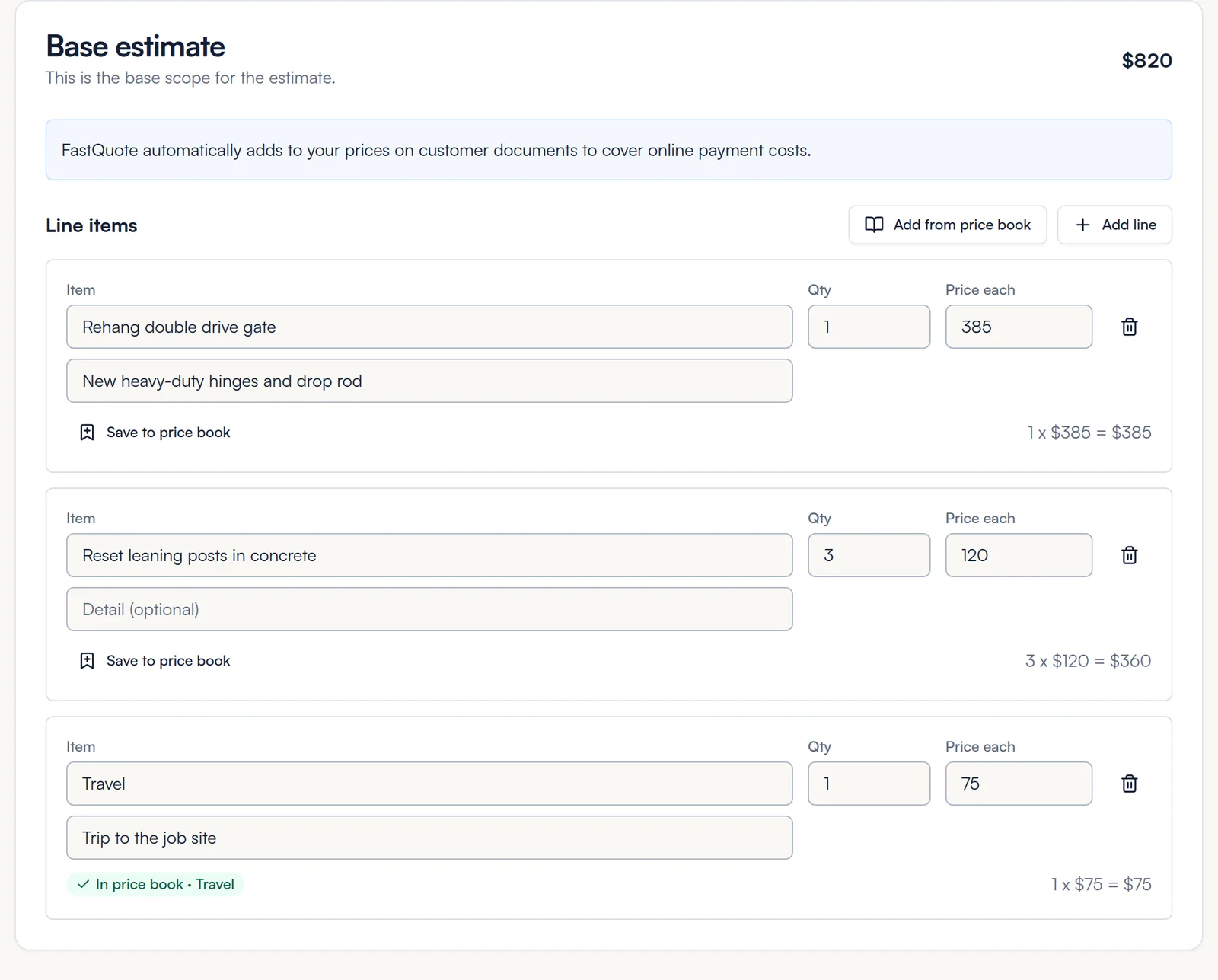
Use Manual line items for repairs, small jobs or anything the calculator does not cover.
- Under Base estimate, enter each line's description, detail, quantity and price each. Click Add line for more.
- Click Add from price book to drop in a saved item, like Travel.
- Click Save to price book under a line to reuse it later.
- Under Additional options, click Add option for extras the customer can pick.
Payment schedule
Pick 50 / 50, 40 / 60, 30 / 70, 100% at completion or Custom. The first payment due at signing is the deposit. Percentages must add up to 100%.

With Custom, each payment can be due at signing, a number of days after signing, or at completion. You can also add attachments and your terms, as text, a PDF or both.
Save and preview
- Click Preview customer view to check it.
- Click Save proposal. FastQuote opens the proposal page, ready to send.
Next: send it to your customer.
Common questions
How many styles can I offer?
Four: the base estimate plus 3 more.
Can I change an estimate after I send it?
Yes. Open it and click Edit. Send it again so the customer sees the new version.
What is the difference between markup and target margin?
Markup adds a percent on top of your cost. Target margin prices the job so the percent is your gross profit. A 30% markup is about 23% margin.
I don't see the fence calculator.
Turn on at least one style in your price book.
Still stuck? We are happy to walk you through it.