What you see
The Dashboard opens when you sign in. Click Dashboard in the menu to come back to it at any time.
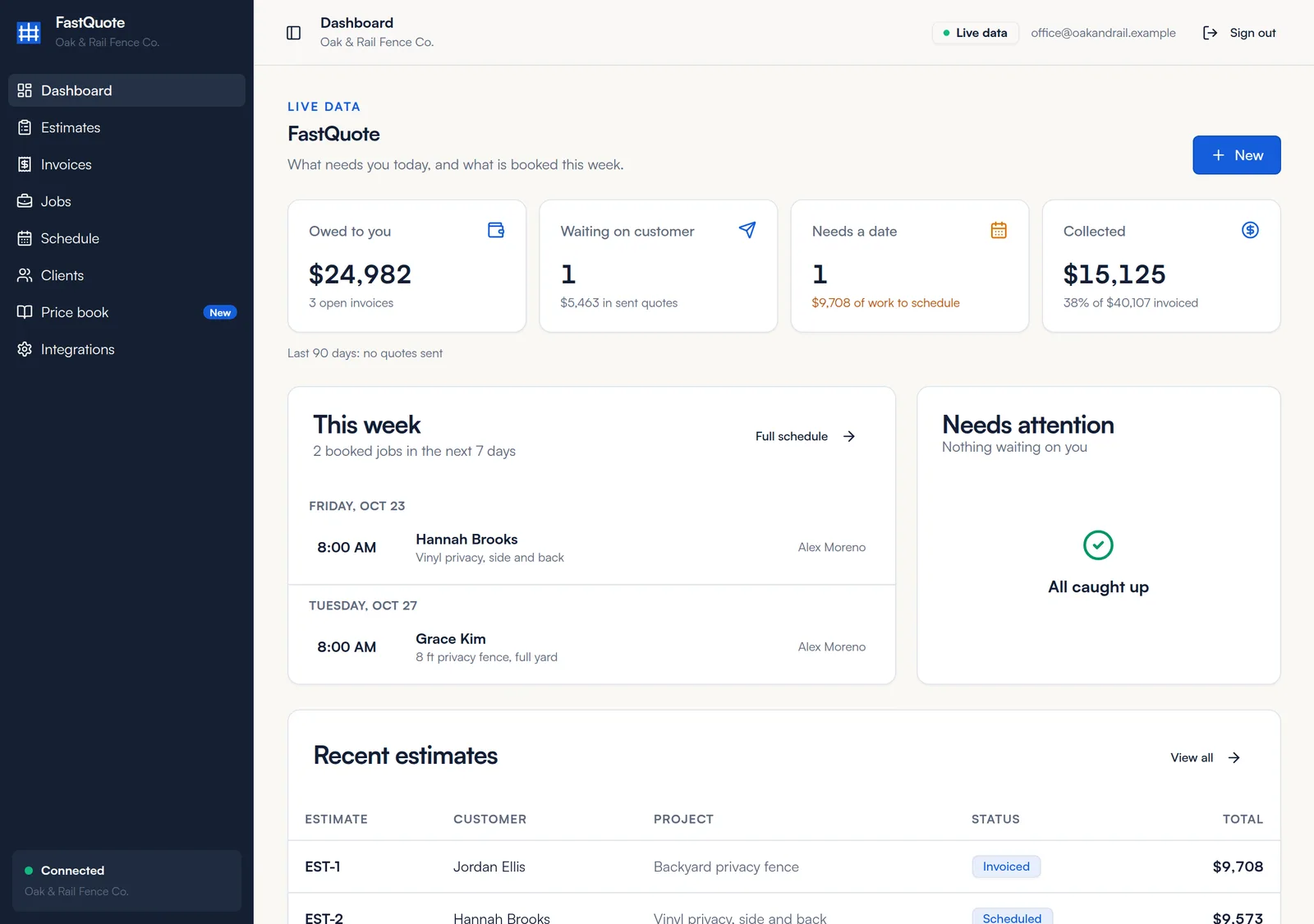
Summary cards
- Owed to you
- The total left to pay on open invoices, with how many are overdue.
- Waiting on customer
- Proposals you have sent that the customer has not signed yet.
- Needs a date
- Active jobs that are not on the schedule yet.
- Collected this month
- Payments received this month, compared with the same point last month.
Below the cards, a short line shows what you collected last month and how many of the quotes you sent in the last 90 days were signed.
This week
Every booking in the next 7 days, by day, with the time, customer, job and crew. Click Full schedule to open the Schedule. If nothing is booked, the card says Open week.
Needs attention
Up to 8 items that need someone to act, each with a button that takes you straight to the fix.
- Date passed
- A job's booked date has passed but it is still marked Scheduled. Click Update job to mark it In progress or Completed.
- Overdue invoice
- A payment is past due. Click Send reminder.
- Job done
- A completed job still needs its final invoice sent. Click Send invoice or Open job.
- Deposit
- A customer signed but the deposit is not paid yet. Click Send reminder, or Send invoice if it is still a draft.
- Waiting
- A proposal has gone 3 days without an answer. Click Follow up.
When nothing needs you, the card says All caught up.
Recent estimates
Your latest estimates with the customer, project, status and total. Click a row to open it, or View all to go to Estimates.
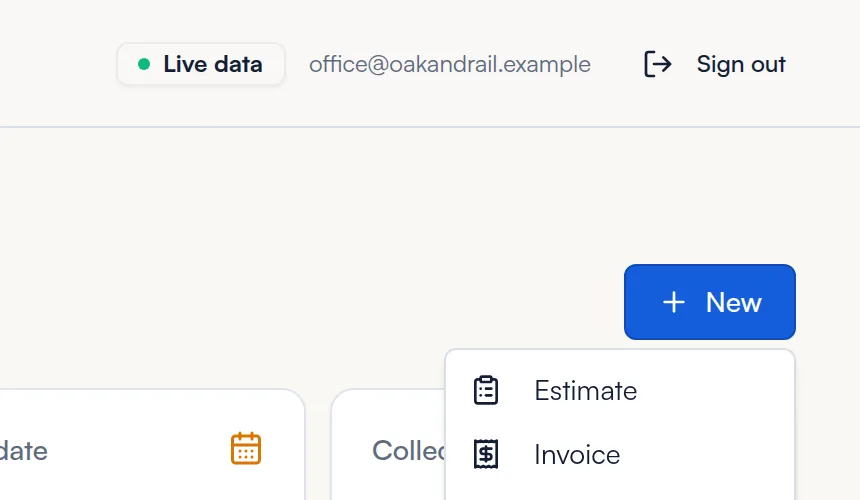
Start something new
Click New at the top right, then pick Estimate, Invoice or Job.
Common questions
How often do the numbers update?
Every time you open the Dashboard or make a change in FastQuote. Refresh the page to pull the latest from your CRM.
A job I booked is not in This week. Why?
This week only shows bookings in the next 7 days that are still active. Completed and cancelled jobs drop off. Check the Schedule for other dates.
How do I clear an item from Needs attention?
Do the action it asks for. For example, once a deposit is paid or a job is marked Completed, the item goes away on its own.
Still stuck? We are happy to walk you through it.