The invoice list
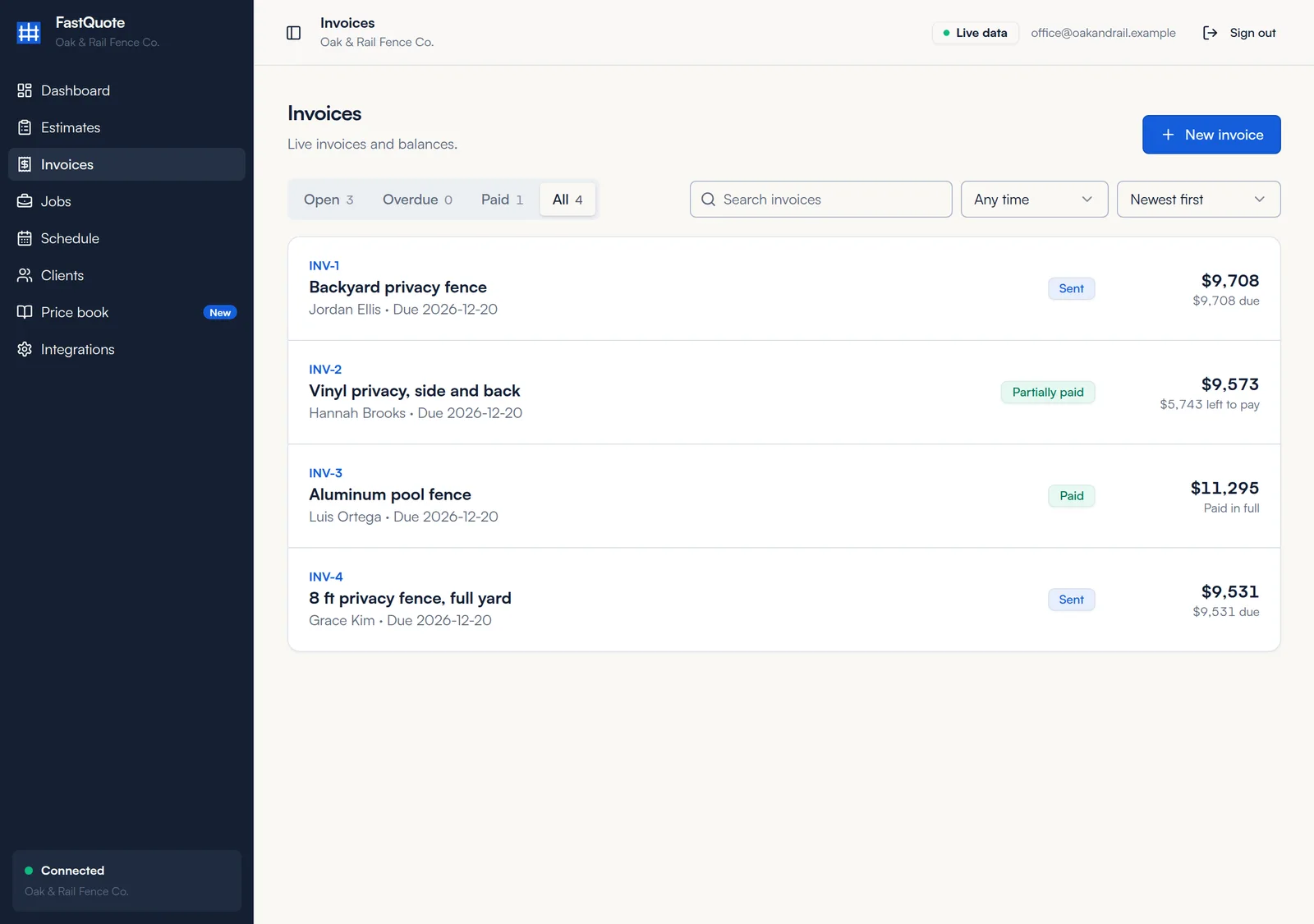
Click Invoices in the menu. Filter by Open, Overdue, Paid or All. Each row shows the status, total and what is left to pay.
Invoice detail
Click an invoice to see its lines, the project total and the check or cash price, the balance due, each payment received, and the payment schedule.
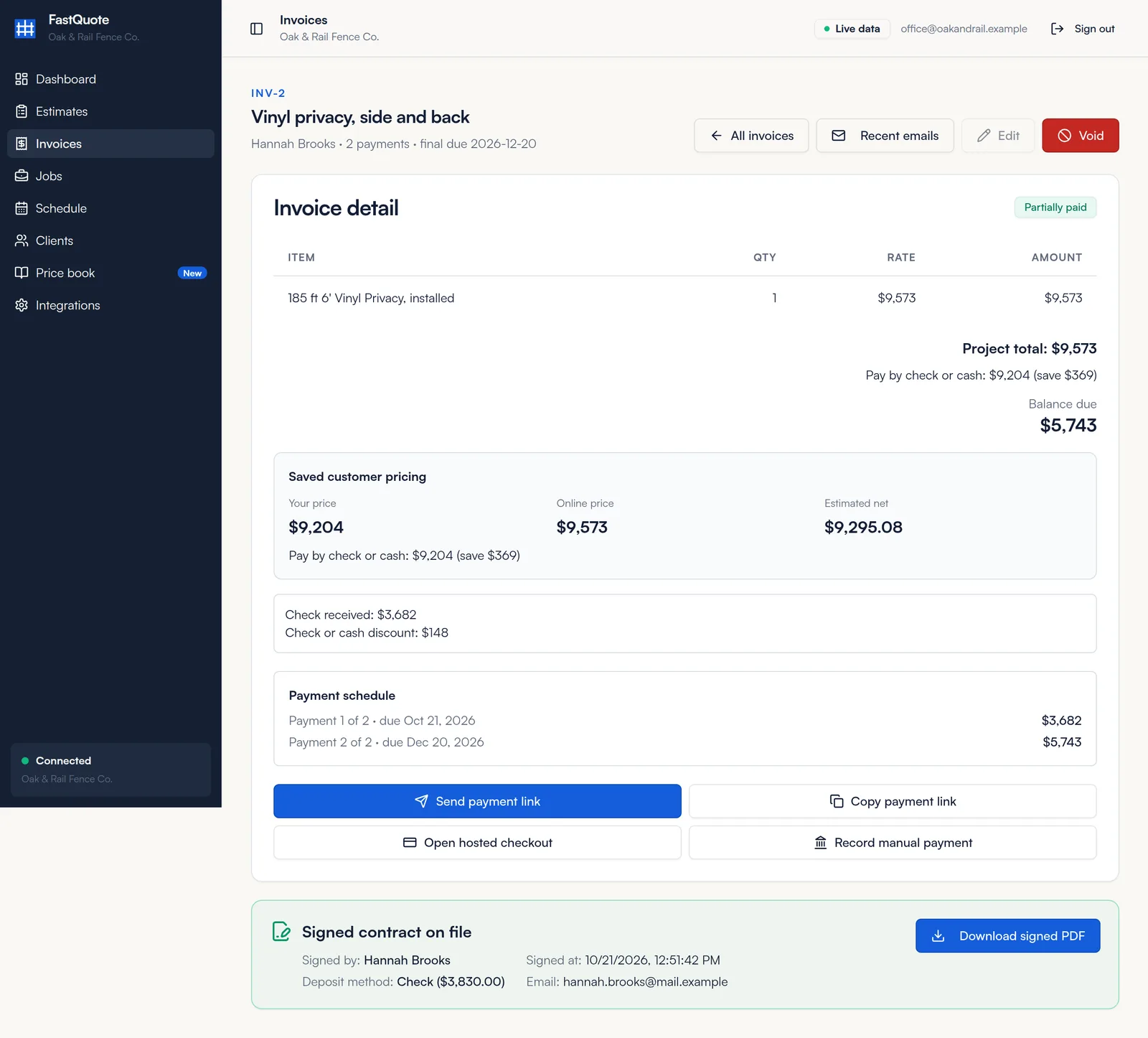
- Send payment link and Copy payment link: see Deposits and payments.
- Record manual payment: log a check, cash or other payment. See Record a check or cash.
- Signed contract on file: who signed, when, the deposit method, and Download signed PDF.
- Recent emails: what was sent to the customer.
Create an invoice
Invoices for signed proposals are made for you. For other work:
- Click New invoice.
- Pick the Client and enter an Invoice name.
- Add line items with quantity and price each.
- Set the Issue date and Due date. Check Split into a payment schedule to ask for a deposit plus balance.
- Click Save invoice, then send it from the invoice page.
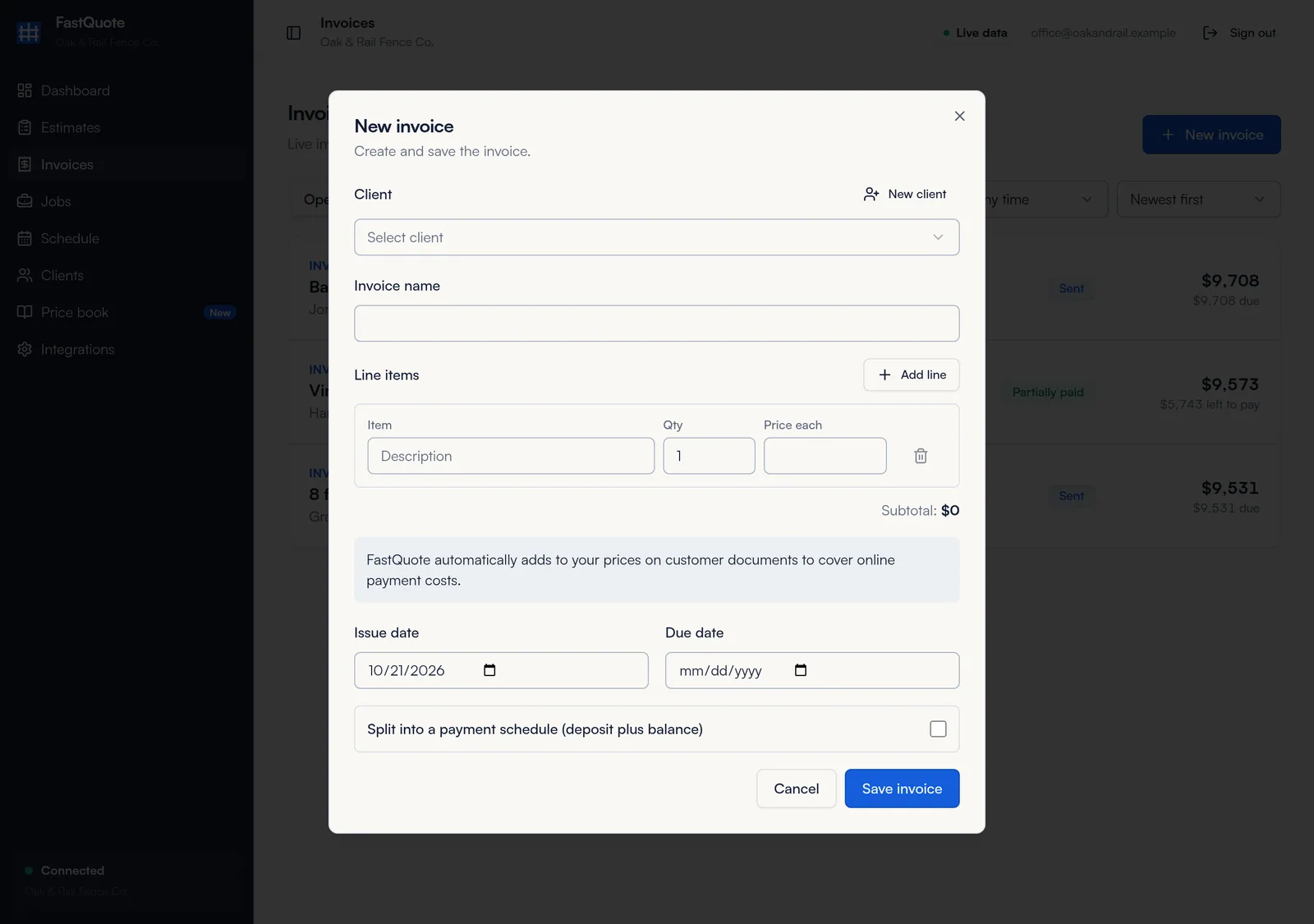
The 4% online price is added on customer documents, just like proposals.
Void an invoice
Open the invoice and click Void. Use it for an invoice sent by mistake. Only drafts can be edited, so void and recreate a sent invoice that is wrong.
Common questions
How do I remind a customer?
Overdue invoices show on the Dashboard under Needs attention with a Send reminder button. You can also click Send payment link on the invoice.
Why does the invoice show two totals?
The project total is the online price. The check or cash price is what the customer pays if they pay that way. See Deposits and payments.
When is the final invoice sent?
For signed proposals, the invoice is sent at signing with all payments on it. If every payment is due at completion, send it after you mark the job Completed.
Still stuck? We are happy to walk you through it.