The calendar
Click Schedule in the menu. Booked jobs show on each day. Click a day to see its appointments, with the time, customer and crew.
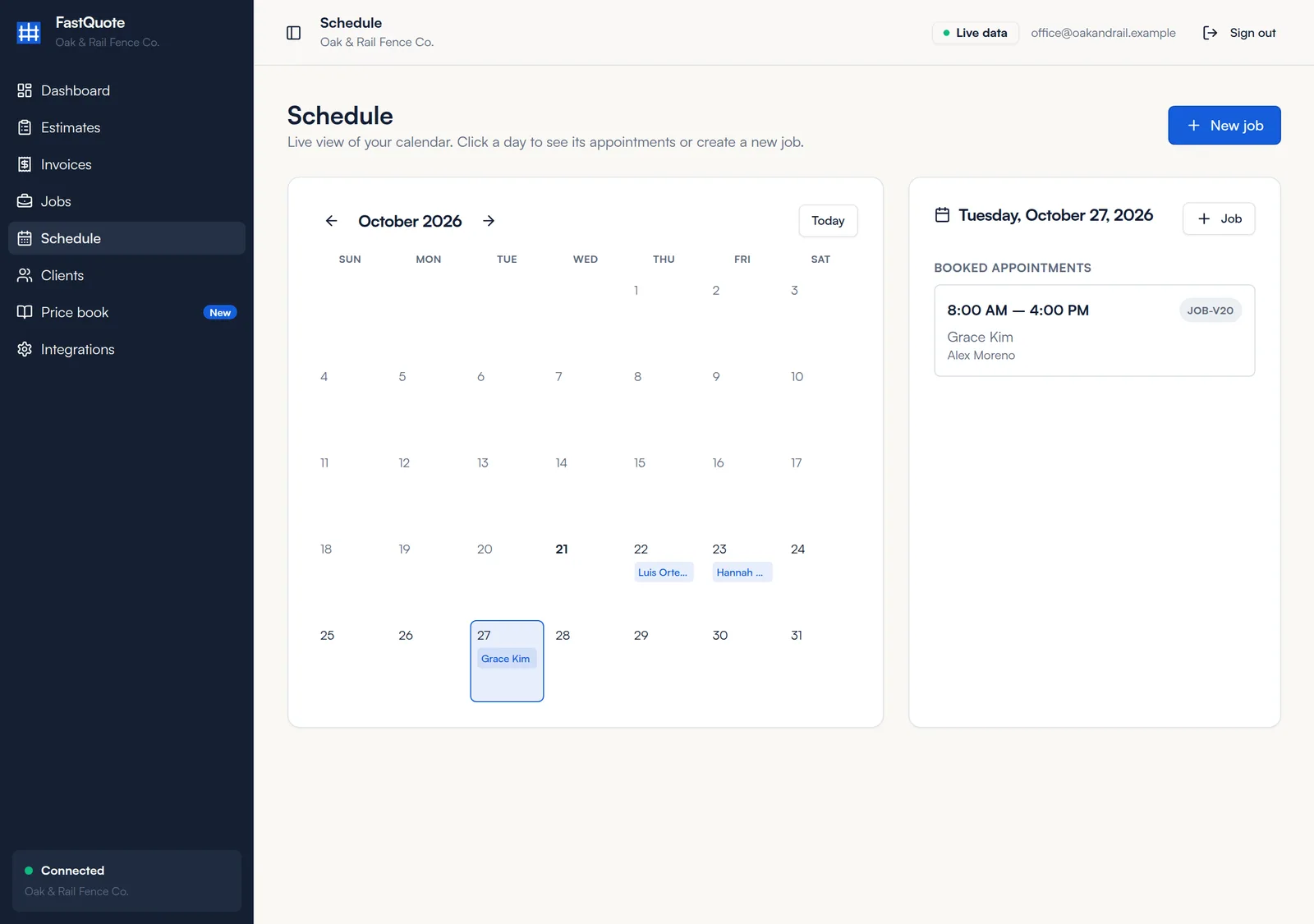
Use the arrows to change month and Today to jump back. Click Job on a day, or New job, to add a job for that date.
Book a job
- Open the job and click Schedule.
- Pick a day marked open. Days with bookings show how many.
- Set the Job length, from 30 minutes to Full day (8 hours), and pick the Crew.
- Pick an open time, then check the details and click Confirm appointment.
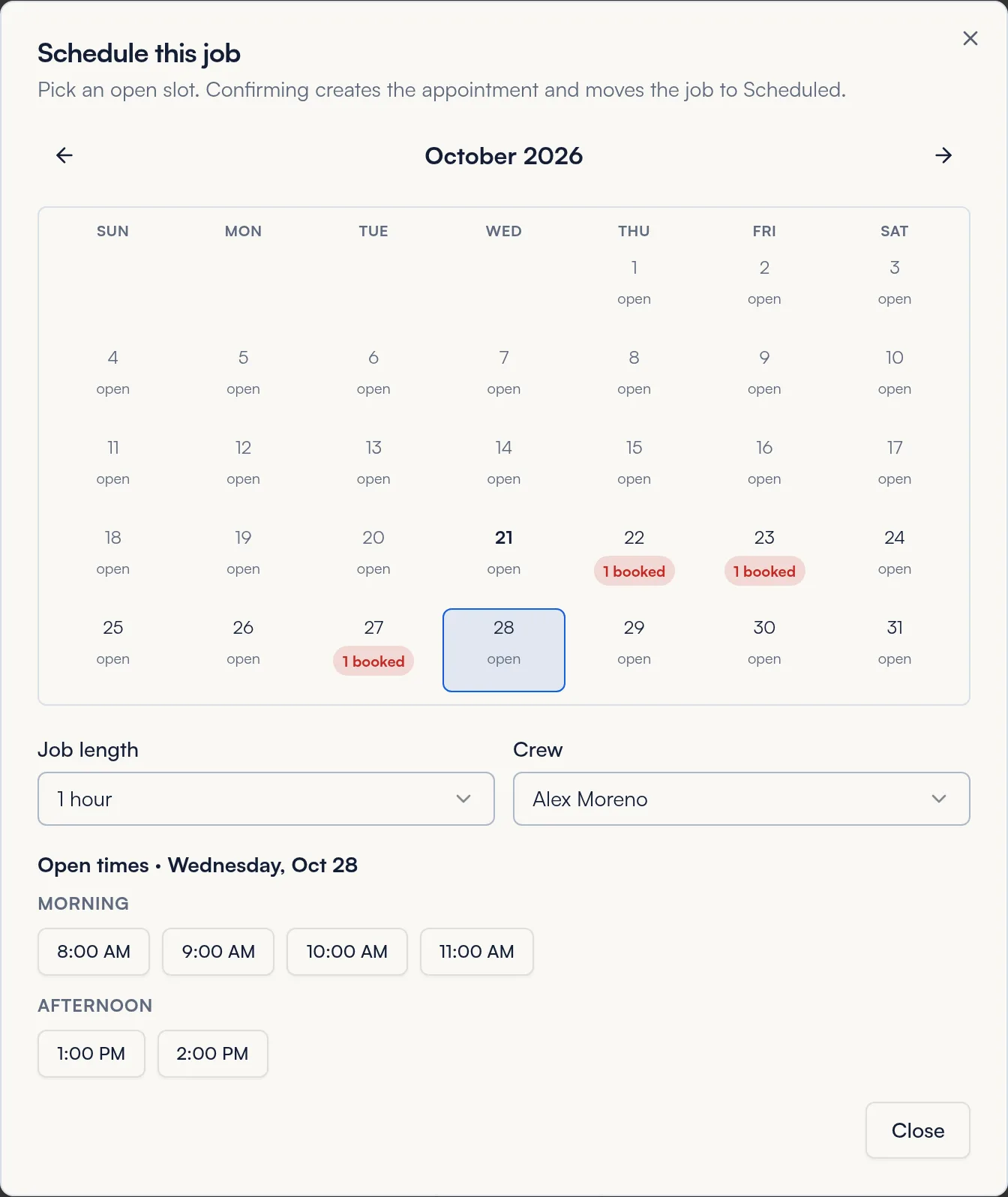
The job moves to Scheduled and shows on the calendar, the Dashboard and the job board.
Reschedule
Open the job and click Reschedule. Pick a new day and time the same way.
Common questions
Why are there no open times?
Open times come from your calendar's availability. If a day is full or your calendar is closed, no times show. Contact us to change your availability.
Does the customer get notified?
Booking creates an appointment on your calendar. Any reminders your CRM sends for appointments go out as usual.
How do I book a job that takes more than a day?
Book the first day as a full day, then add the next days as separate bookings.
Still stuck? We are happy to walk you through it.